
Convert Any DVD to Digital on Windows in Minutes: A Zero-Stress Beginner’s Method
If you’ve still got shelves of DVDs tucked under the TV or stored in a box somewhere, you’re not alone. Those discs often hold years of family movies, comfort-watch favorites, and films that aren’t available on any streaming service. But the truth is, DVDs don’t last forever — and neither do the devices that play them. The simplest way to preserve your collection is to turn those discs into digital files you can watch anywhere.

The good news? You don’t need technical knowledge, complicated software, or hours of trial and error. In fact, converting a DVD on a Windows PC has become so beginner-friendly that most people are surprised by how quickly it all comes together. This guide walks you through the process step-by-step, using a workflow designed specifically for people who want clarity, not confusion.
The Beginner Problem: DVDs, Confusing Tools, and Technical Overload
If you’ve ever opened conversion software and immediately closed it because of unfamiliar settings — bitrates, codecs, deinterlacing, and so on — you’re in good company. Older tools were built for advanced users, and they often left beginners feeling like they’d stumbled into an engineering lab.

Common frustrations include:
- Tools that ask for settings you don’t understand
- Interfaces that feel like they were designed 15 years ago
- Conversions that take hours instead of minutes
- DVDs that won’t load because of region locks
- Output files that look blurry or stretched
And none of that is your fault. Traditional software expected you to make decisions that only video professionals should have to worry about. Modern DVD-to-digital converters for Windows take the opposite approach — they simplify everything, automate complicated steps, and get out of your way.
The Easiest DVD-to-Digital Workflow for Windows
A truly beginner-friendly converter handles the messy parts for you:
- It recognizes the correct main movie title
- It applies the best format for everyday devices
- It balances speed and quality automatically
- It removes confusing terminology
- It supports modern Windows hardware for faster conversions
This is why many Windows users lean toward tools like WonderFox DVD Ripper Pro — the software makes decisions on your behalf instead of piling them on top of you.
What gets handled in the background:
- GPU acceleration for dramatically faster rips
- Ideal MP4 settings for universal playback
- Correct title detection on discs with misleading tracks
- Support for Smart TVs, laptops, phones, and tablets
- Quality optimization without manual tweaking
Instead of hunting through tabs, you follow a short, straightforward workflow — insert disc, choose format, click start.

Step-by-Step: The Zero-Stress DVD-to-Digital Conversion Process
Here’s the breakdown for absolute beginners. No skipped steps. No tech jargon.
1. Insert Your DVD

Give Windows a moment to read it. You don’t need to open anything manually; the converter will spot it instantly.
2. Open your DVD-to-Digital converter
The software scans the disc and finds the real main title for you. Some DVDs hide the movie behind dozens of fake tracks — modern tools cut straight through that.
3. Pick your format: MP4 or MKV

MP4 is the safest option and works everywhere:
- Smart TVs
- Phones
- Tablets
- Streaming sticks
- Laptops
- Cloud storage
MKV is more flexible for collectors because it can store extra audio tracks and subtitles.
Not sure which one to choose?
Go with MP4 — it’s the worry-free option.
4. Press “Start”
Once you hit Start, everything happens behind the scenes. GPU acceleration kicks in, the correct codecs are applied automatically, and the conversion usually finishes within 10–20 minutes.
5. Save your digital file
Your newly converted file can be dragged onto:
- A USB stick
- A Smart TV
- A Plex or Jellyfin library
- Your phone
- A laptop
- Your cloud backup folder
You’ve now officially preserved your DVD in a future-proof format — and it took less effort than brewing a pot of coffee.
Choosing the Right Format Without Overthinking It
Let’s strip the complexity away:
MP4 (H.264)
This is the one-size-fits-everyone format. It’s efficient, clean, and universally supported.
MKV
Great for archiving or keeping multiple audio/subtitle tracks.
H.265 (HEVC)
Smaller file sizes, but older devices may not support it.
When in doubt?
MP4 is always the safest call.
Troubleshooting Made Simple
Even straightforward processes can hit small bumps. Here are fixes that don’t require technical knowledge.
“My DVD isn’t loading.”
- Wipe the disc
- Reinsert the disc
- Open the converter after the disc loads
“The video looks stretched.”
Choose Keep Original Aspect Ratio.
This fixes nearly every shape issue.
“It’s taking too long.”
Try these quick tweaks:
- Close other programs
- Make sure GPU acceleration is turned on
- Stick with MP4
Most Windows machines speed up significantly with hardware acceleration enabled.
FAQs
Do I need a fast computer?
No. Even older Windows laptops handle DVD conversions well.
Will the digital files work on my phone?
Yes — if it’s MP4, it’ll play on almost any device.
How big are the files?
- MP4 Movies: usually 1–2 GB
- TV Episodes: 250–500 MB
- MKV Backups: 4–6 GB depending on track options
Products / Tools / Resources
WonderFox DVD Ripper Pro – A beginner-friendly Windows DVD converter that automates the complicated parts and produces universal MP4 files.
Enter code: VCF20D to get 20% off.
Plex / Jellyfin / Emby – Home media server platforms if you want to organize your new digital library.
Google Drive / OneDrive / Dropbox – Helpful for backing up your digital collection and keeping it accessible across devices.
External Hard Drive or NAS – Ideal for storing large DVD archives long-term.
How to Recover Files from External Hard Drive: 6 Methods to Try
Have you ever accidentally deleted important files from your external hard drive? It’s a stressful situation, especially if those files are irreplaceable, like precious photos, work documents, or videos. But don’t worry! There are several ways to get those files back. In this guide, we’ll walk you through 6 different methods you can try to recover lost files from your external hard drive, including a simple and effective tool called RecoveryFox AI.
Why Did I Lose Data from My External Hard Drive?
Before diving into the recovery process, it’s helpful to understand why your files may have gone missing. Here are some common reasons:
- Accidental Deletion: You may have hit Shift + Delete by mistake, or you could have deleted files without realizing it.
- Formatted Drive: Sometimes, you have to format your external drive to use it again or fix errors, and this leads to data loss.
- Lost Partition: A partition may become unallocated or inaccessible due to system errors, leading to lost files.
- System Crash: If your computer crashes, it can affect the external hard drive, making your files hard to access.
- Virus or Malware: Malicious software can delete or corrupt your files without you even knowing.
6 Methods to Recover Files from External Hard Drive
Method 1: Check Your Recycle Bin
The easiest thing to try first is checking the Recycle Bin on your computer. If the files were accidentally deleted but not permanently erased, they should be in there. Simply:
- Open the Recycle Bin on your desktop.
- Look for the files you need to recover.
- Right-click on them and select Restore.

That’s it! Your files should be back in their original location.
Method 2: Restore from Backup
If you’ve been proactive and created a backup of your files (using Google Drive, OneDrive, or another backup service), now’s the time to restore them.
- Open your backup service or software.
- Find the files or folders you want to recover.
- Follow the restore process in your backup program.
It’s always a good idea to keep your important files backed up regularly to avoid this kind of stress in the future.
Method 3: Use Check Disk (CHKDSK)
If your external hard drive is showing errors or you can’t access the files, running CHKDSK (Check Disk) can help repair it.
- Connect your external hard drive to your PC.
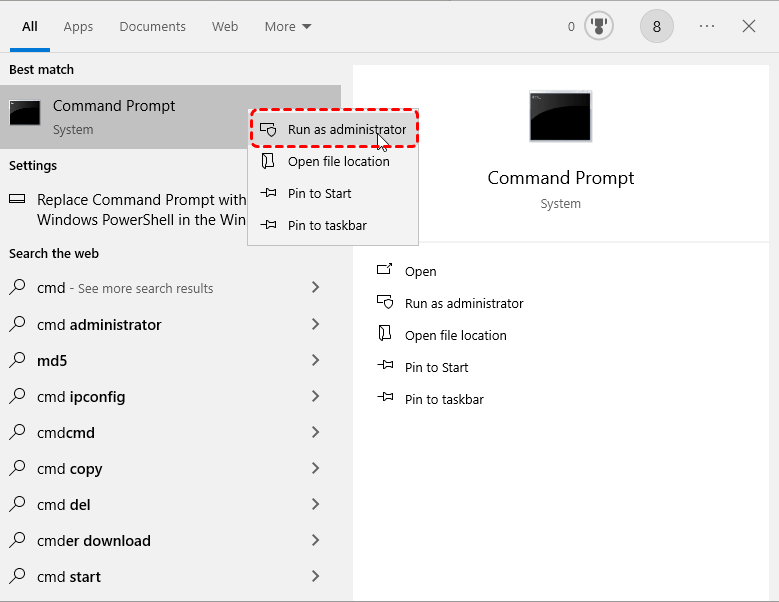
- Open Command Prompt as Administrator (search for “cmd” and right-click to run as Administrator).
- Type the following command and press Enter:
chkdsk X: /f(Replace “X” with the drive letter of your external hard drive).
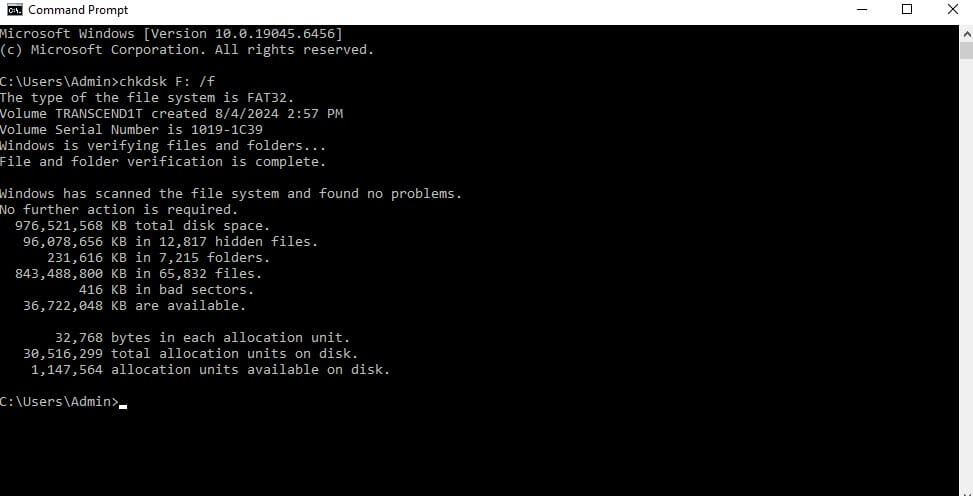
2. Let the system scan and fix any issues with the drive.
This method may help recover your files, especially if the drive’s file system is corrupted.
Method 4: Use Data Recovery Software
If the first three methods don’t work, it’s time to try a data recovery tool. One of the easiest and safest ways to recover lost files is by using specialized software like RecoveryFox AI.

Here’s how you can recover your files with RecoveryFox AI in 3 simple steps:
- Download and Install RecoveryFox AI: First, download and install the software. The free version allows you to scan your drive and preview the lost files.
- Scan Your External Hard Drive: Open the software and select your external drive. Then, click on the Scan button. RecoveryFox AI will start scanning the drive for lost files. This could take a few minutes depending on the size of the drive.
- Preview and Recover Files: Once the scan is complete, you’ll be able to preview the files you want to recover. Select the files you need and hit the Recover button. Make sure to save the recovered files to a different drive (not the same one you’re recovering from) to avoid overwriting any data.
Why Choose RecoveryFox AI?
- Read-only mode: It ensures that no new data is written to your drive while scanning, so your lost files aren’t overwritten.
- AI-powered recovery: The software uses advanced AI algorithms to help you recover files more efficiently and accurately.
- Preview before recovery: You can see the files before you decide to recover them, saving you time and effort.
- Easy to use: No technical expertise required. The interface is user-friendly and simple to navigate.
Method 5: Recover Lost Partition
If your external hard drive has lost a partition, you may be able to recover it using partition recovery software. RecoveryFox AI can help with this as well by scanning the entire drive for lost partitions and letting you recover data from them.
- Open RecoveryFox AI and select Partition Recovery mode.
- Scan your external drive for lost partitions.
- Select the partition to recover and restore the files.
Method 6: Use Professional Data Recovery Services
If none of the above methods work or if your external hard drive has physical damage (like a mechanical failure), it might be time to contact a professional data recovery service.
These services are expensive and not always successful, but they can handle more complex cases of data loss. If you choose to go this route, make sure you do your research and pick a reputable service.
Why Should You Use RecoveryFox AI?
While there are many recovery options out there, RecoveryFox AI stands out for several reasons:
- Safe recovery: The software uses read-only mode, so it won’t overwrite any of your data while scanning.
- AI-powered deep scan: It’s designed to find files that other tools might miss, giving you the best chance of recovery.
- Easy to use: You don’t need any technical knowledge to use RecoveryFox AI. Just follow the simple 3-step process.
- Preview before recovery: This feature allows you to see your lost files before you recover them, so you only restore what you need.
- Supports multiple devices: Works with external hard drives, USB drives, SD cards, and other storage devices.
Conclusion
Losing files from your external hard drive doesn’t have to be the end of the world. With the right approach and tools, you can easily recover your important data. Try RecoveryFox AI today, and get your files back with minimal effort!
Download the free trial now and recover your lost files safely with RecoveryFox AI. Don’t wait until it’s too late – the sooner you act, the better your chances of recovery.
FAQ
- Is RecoveryFox AI safe to use?
Yes! RecoveryFox AI uses a read-only scanning mode, ensuring no new data is written to your drive during the recovery process. - Can I recover files from a formatted external hard drive?
Yes! RecoveryFox AI can recover data from formatted drives, including external hard drives, USBs, and SD cards. - Does it work on all file systems?
RecoveryFox AI supports common file systems like NTFS, FAT32, and exFAT.
➡ Link Sign up for RecoveryFox AI Lifetime with a 15% discount: https://greencouponcodes.com/lifetime-recoveryfoxai
Enter code: GREENCODES15OFF to get 15% off (Only applies when you sign up through the link above).
