Comments Off on How to Build a High-Converting Systeme.io Landing Page in 15 Minutes (Beginner Guide)
If you’ve ever stared at a blank landing page and felt that quiet wave of overwhelm, you’re not alone. Most beginners think they need perfect design skills, some hidden marketing formula, or hours of tinkering to build a page that actually converts. Systeme.io flips that idea on its head.
This platform works beautifully for beginners because it’s intentionally simple. The editor guides you toward cleaner layouts, faster decisions, and fewer dead ends. And when you remove the clutter and second-guessing, something interesting happens: conversions go up. Visitors take action more quickly because they aren’t drowning in distractions.
Systeme.io’s structure naturally keeps you focused on what matters—your message, your offer, and the small handful of elements that turn a curious visitor into a new lead. This guide walks you through the exact process to create a polished, conversion-ready landing page in about fifteen minutes… even if you’ve never built one before.
Choosing the Right Systeme.io Template for Your Goal
Your landing page’s success starts with one simple choice: picking the right template. Beginners often scroll endlessly, trying to find “the perfect one,” but the truth is far less stressful. You just need a template that matches the goal of your page—nothing more.
Here’s the simplest way to think about it:
If you want email subscribers → choose a lead generation template.
If you want sales → choose a sales page template.
If you’re building hype → choose a waitlist or coming soon template.
You’re looking for clarity, not complexity. The best beginner templates have:
A strong hero section
One clear call to action
A straightforward layout
Minimal extra sections
What you don’t want is a template with a dozen sections, multiple CTA paths, or heavy design elements you’ll need an hour to figure out. Keep it simple. Simple converts.
Understanding the Systeme.io Editor (And Which Blocks Actually Matter)
The editor inside Systeme.io is easy to get comfortable with, but beginners often click into every block and wonder what’s safe to touch. Here’s the truth: only a few elements shape the entire conversion experience.
The essential blocks you’ll rely on
Headline – This tells your visitor why they should care.
Text – This expands on the benefit in a clear, human way.
Image – Should reinforce your offer, not distract from it.
Button – Your primary action driver.
Form – The moment where the visitor becomes a lead.
Everything else is optional seasoning—not the meal.
Blocks to treat with caution
Carousels
Background video sections
Busy multi-column layouts
Large spacer blocks
These tend to make pages feel noisier and break more easily on mobile, which is where most of your visitors will land.
Building Your First High-Converting Systeme.io Landing Page (Step-by-Step)
Let’s walk through the process as if you and I were building the page together—no fluff, just the pieces that matter.
Step 1: Write a Headline That Gives Visitors a Reason to Stay
Your headline is the hinge the entire page swings on. Think of it as a promise. Clear, specific, and rooted in the transformation you’re offering.
You don’t need poetry. You need clarity.
Examples that work beautifully:
“Get the Free Checklist That Helps You Launch Your Online Business in 7 Days”
“Discover the Simple 3-Step System to Start Making Money Online — Even If You’re a Complete Beginner”
“Download the Beginner Funnel Blueprint That Makes Setup Simple”
“Join the Challenge That Kickstarts Your Affiliate Journey Today”
Visitors don’t respond to features. They respond to outcomes.
Step 2: Build a Clean, Easy-to-Scan Layout
Above the fold, aim for:
A headline
A short, supportive subhead
A button or form
A simple visual
Everything below the fold should feel like a gentle nudge, not a lecture. Resist the urge to add too many sections. Beginners convert best with less, not more.
Step 3: Use the Right Visual
Your image should help visitors imagine what they’re about to receive. Pick visuals that feel like a real extension of your offer, not random decoration.
The best choices include:
Ebook or checklist mockups
Course or video thumbnails
A clean, friendly photo
Device mockups with previews
Avoid glossy stock images—they don’t build trust, they dilute it.
Step 4: Keep Your Form Short
If your goal is lead generation, don’t complicate the form. Every extra field creates a moment of hesitation.
Required:
Email
Optional:
First name
That’s it. Simplicity wins.
Step 5: Add Micro-Copy That Helps Visitors Take the Leap
Short reassurance phrases make an outsized impact because they address the tiny worries people rarely say out loud.
Add small notes like:
“You can unsubscribe anytime.”
“No credit card required. Instant access. Perfect for beginners.“
“No spam—ever.”
“Instant access inside your inbox.”
This kind of language softens the friction and makes the action feel safe.
Step 6: Use a CTA That Sounds Like the Visitor’s Voice
“Submit” is robotic. “Get Instant Access” feels like a step forward.
A few reliable go-tos:
“Send Me the Guide”
“Get Instant Access”
“I Want This!”
“Show Me How to Start”
First-person CTAs consistently outperform generic ones because they reinforce the user’s sense of agency.
Easy Systeme.io Enhancements That Make a Big Difference
Use Timers With Intention
A timer can strengthen urgency, but only when the deadline is real. If you use one on a normal, evergreen freebie, it backfires.
Good uses:
Challenge registration closing
Limited-time bonuses
Real launch windows
Bad uses:
Everyday lead magnets
Evergreen offers
Anything fake or forced
Visitors feel the difference instantly.
Add a Short Video to Build Trust
If you’re comfortable turning on the camera, a 30–60 second video can transform how people react to your page. You don’t need high production—just a real explanation of who the page is for and why the offer is worth their time.
Authenticity beats polish. Always.
Make Sure Your Page Passes the Mobile Test
Grab your phone and load the page. You’re looking for:
Clean spacing
Easy-to-read headline
Buttons big enough for thumbs
A form that isn’t squeezed
A page that doesn’t feel overwhelming
If a visitor can understand your offer within the first five seconds on mobile, you’re in excellent shape.
Copywriting Tips Tailored Specifically to Systeme.io’s Structure
Benefit Stacking
Paint a picture of what changes after they opt in.
Not: “Download my email marketing guide.”
Better: “Learn the 5-step email system beginners use to double their affiliate income.”
Build a Hero Section That Tells a Story Quickly
The strongest hero sections follow a simple rhythm:
What they want
Why it matters
What they get
How to get it
It’s a subtle narrative arc, but visitors feel it instantly.
Use CTA Scripts That Spark Action
Try action-based, first-person language like:
“Give Me Instant Access”
“Let’s Start This”
“Send It to My Inbox”
These create a sense of momentum and commitment.
Beginner FAQs for Systeme.io Landing Pages
How long should my landing page be? Short. Most top-performing beginner pages have two to four small sections.
Can I use more than one CTA? One CTA, repeated. Not multiple choices.
Should I link to other pages? Avoid it. Every extra link leaks conversions.
Do I need long copy? Not for lead magnets. Short, benefit-driven copy wins.
Does design matter? Yes, but clarity always beats aesthetics.
Products / Tools / Resources
Systeme.io – Your all-in-one platform for funnels, email marketing, automation, and landing pages.
Canva – Perfect for creating ebook mockups, thumbnails, and simple visuals for your landing pages.
Unsplash & Pexels – Free, high-quality images when you need clean and minimal visuals.
Squoosh.app – Compress your images before uploading to keep pages fast on mobile.
Notion or Google Docs – Great for writing and storing your page copy before you paste it into Systeme.io.
Comments Off on 7 Proven Ways to Find Undervalued Crypto Gems Before They Explode
Every cycle has its legends — the tokens that nobody is paying attention to until suddenly everyone is. They’re quiet, overlooked, sometimes even dismissed. And then one day, they erupt.
Those dramatic price moves aren’t random. They follow patterns. They follow human behavior. And most importantly, they follow data — data that appears long before the breakout happens.
Spotting undervalued crypto gems isn’t about luck. It’s a skillset grounded in understanding how markets misprice assets, how narratives form, and how early signals show themselves in both on-chain and off-chain activity.
Below are seven proven methods professionals use to find undervalued crypto gems early — with a subtle note on a tool that can help accelerate your research if you’re serious about doing this effectively.
1. Why Undervalued Crypto Gems Even Exist (And Why Most People Miss Them)
Crypto markets are emotional, fast-moving, and influenced heavily by narrative waves. This creates an environment where strong projects can remain undervalued simply because they haven’t entered the spotlight yet.
Quiet Projects Go Unnoticed
Most early-stage projects lack:
Influencer hype
Exchange listings
Large marketing budgets
Yet they often have dedicated teams quietly building.
Retail Bias Causes Blind Spots
Retail investors chase what’s already moving. By the time a token appears everywhere on social media, the early opportunity is gone.
Fundamentals Improve Before Price
A project can gain users, expand partnerships, and ship updates for months before the market catches on.
Your advantage is spotting that early.
2. Compare Market Cap vs Fully Diluted Valuation (FDV)
This single valuation lens helps filter out the majority of bad opportunities.
Market Cap Reflects Today
Only circulating supply matters here.
FDV Reveals Tomorrow
If a token has a tiny circulating supply but massive incoming unlocks, selling pressure could crush the price.
Healthy Undervalued Projects Often Have:
Reasonable FDV
Fair emissions
Sustainable tokenomics
This ensures long-term potential rather than short-lived pumps.
3. Use On-Chain Activity to Spot Momentum Early
On-chain data reveals what’s happening beneath the surface. It shows the behavior of real users, real liquidity, and real investors — long before hype builds.
Unique Wallet Growth
Steady increases in holders typically indicate legitimate interest.
Smart Money Accumulation
When experienced wallets begin accumulating quietly, it’s rarely random. This is one area where specialized tools can help streamline your research.
For example: The Crypto Underworldoffers a simplified way for beginners to understand early DeFi activity and track lesser-known tokens before they expand to larger platforms. It doesn’t replace deep research — but it can help newer investors navigate early-stage DeFi with more confidence, especially when learning how to identify potential gems in their infancy.
Liquidity Depth & Bridging Patterns
Growing liquidity, cross-chain expansion, and balanced pool depth often signal a project preparing for larger exposure.
4. Do the Off-Chain Research Most Traders Ignore
Off-chain fundamentals often reveal the true strength of a project.
Team Track Record
A credible team is one of the strongest predictors of long-term viability.
GitHub Activity
Healthy projects have consistent commits and visible progress.
Roadmap Execution
Execution matters more than grand promises. Solid teams deliver quietly, consistently, and without sensationalism.
5. Evaluate Token Utility and Ecosystem Fit
A token’s purpose determines its long-term value.
Real Utility Matters
Ask: If this token disappeared tomorrow, would anything break?
If the answer is yes, the project has inherent value.
Ecosystem Momentum
Tokens aligned with strong sectors — AI, DePIN, RWAs, gaming infrastructure — tend to compound faster.
Meaningful Integrations
Look for partnerships with reputable ecosystems and real use cases, not superficial announcements.
6. Disqualify Red Flags Immediately
Even if a token looks undervalued, certain issues make it uninvestable.
🚩 High FDV Without Utility
Future dilution risk.
🚩 Large Unlock Cliffs
Heavy selling pressure ahead.
🚩 Anonymous Teams + No Audit
Too much risk for too little reward.
🚩 Marketing Over Development
A major red flag for long-term sustainability.
7. Build a Portfolio Strategy That Survives Volatility
Even the best gems won’t perform well without proper portfolio management.
Position Sizing
Small caps don’t require large allocations to deliver strong results.
Set Your Exit Strategy Before You Enter
Remove emotion from your decisions.
Allocate According to Volatility
Match your risk to the nature of the asset.
FAQs
What makes a token undervalued? When its development, usage, or adoption significantly exceeds its current price.
Are low market cap coins always undervalued? Not at all — fundamentals matter more than numbers.
How fast do undervalued tokens explode? Some move fast; others develop quietly for months.
Can tools help identify gems earlier? Yes — tools that simplify early-stage DeFi discovery can be helpful, especially for beginners.
Products / Tools / Resources
Below are helpful resources for identifying undervalued crypto gems more efficiently:
The Crypto Underworld— A beginner-friendly system that teaches how to explore the DeFi market and spot early-stage tokens before they go mainstream. Ideal for new traders learning how to navigate DeFi, evaluate low-cost tokens, and understand early momentum signals.
CoinGecko / CoinMarketCap — Market cap and tokenomics reference
TokenUnlocks — Track unlock schedules
Dune Analytics — Build custom on-chain dashboards
Nansen / Arkham — Advanced wallet and inflow tracking for intermediate users
If you spend any time creating videos—whether for YouTube, online courses, brand content, or your personal library—you’ve probably noticed how chaotic the modern video world has become. Every platform wants a different format, different resolution, different bitrate. Phones shoot in one codec, editing apps want another, and social platforms compress your content so aggressively that your hard work can end up looking like a blurry mess.
That’s why video converters aren’t “nice utilities” anymore. They’re the quiet engines keeping creators, marketers, teachers, and everyday users afloat.
But when someone is choosing a converter, their brain is doing more than scanning features. They’re thinking:
Will this tool break my workflow?
Will I actually understand how to use it?
Can I trust it not to ruin my video quality?
Does this save me time, or add more steps?
Most converters fail one of those tests. A handful pass. And then there’s the rare tool that hits every mark without shouting about it—HD Video Converter Factory Pro.
HD Video Converter Factory Pro: Core Strengths
HD Video Converter Factory Pro doesn’t try to wow you with hollow marketing. It wins by quietly doing a lot of things very, very well.
Speed Benchmarks & Compression Efficiency
This software leans on GPU acceleration, which is just a technical way of saying: it moves fast. Even on modest machines, conversions happen quicker than you expect. That’s a big deal when you’re dealing with:
4K footage
Batch conversions
Slow-motion or high-bitrate files
What stands out most is the compression efficiency. You can shrink a huge video into a smaller file without the usual mushy loss of detail. Most converters force you to choose between speed or quality. This tool somehow maintains both.
Supported Formats & Device Presets
More than 500 formats. More than 300 device presets. Newer codecs. Legacy ones. All the usual suspects like H.264 and H.265—plus VP9 and other modern formats.
But what matters is how it feels to use: You load a video, pick your device or platform, and you’re done. No intimidation. No codec gymnastics.
Useful Tools Competitors Overlook
Here’s where HD Video Converter Factory Pro quietly becomes a whole workflow:
Built-in downloader
Screen recorder
Lightweight editor
GIF creator
Slideshow builder
Batch compression tools
Most competitors make you pay extra for these features. This one doesn’t.
A User Experience That Doesn’t Get in Your Way
Some video tools bury you under menus and settings. HD Video Converter Factory Pro does the opposite. Its UI is intentionally simple—almost deceptively so. You open it, click what you need, and you’re moving.
Beginners don’t feel overwhelmed. Advanced users don’t feel slowed down. It’s a difficult balance, but the software pulls it off.
Competitor Breakdown: Side-by-Side Analysis
Let’s look at how the tool stacks up against the biggest names.
HitPaw Video Converter
Clean, modern interface. Nice features. But the pricing creeps up fast, and the speed doesn’t quite match.
Any Video Converter
A familiar name with a free version, but it’s had a troubled reputation due to bundled extras and inconsistent performance.
Movavi Video Converter
Sleek, polished, and extremely friendly. But it gets expensive quickly, especially if you need the more powerful features.
Wondershare UniConverter
Loaded with tools. Practically an entire suite. But it’s heavy—your computer feels it—and the interface can overwhelm newcomers.
The Takeaway
Most competitors nail one thing: either simplicity, or power, or value. HD Video Converter Factory Pro is one of the few that bridges all three without compromise.
Real-World Use Cases: Where HD Video Converter Factory Pro Wins
Different audiences come to video converters with very different needs. Here’s how the tool serves each one.
For YouTubers
Quick conversions. Smart compression. Ready-made presets for upload. You end up spending less time waiting and more time making.
Different platforms are picky with formats. This software handles:
Instagram reels
TikTok vertical videos
Facebook ad specs
Story formats
All without manual tweaking.
For Personal Use
Sometimes you just want to convert old clips, shrink giant videos, or send files to someone without clogging their inbox. This tool handles the basics effortlessly.
Final Verdict: Who Wins and Why?
Here’s the straight, distilled answer most people are searching for:
HD Video Converter Factory Pro — the feature set is unmatched for the price.
Easiest for beginners:
Movavi — but limited once you need more power.
Best for advanced users:
Wondershare UniConverter — though heavier and pricier.
Overall winner:
HD Video Converter Factory Pro
It hits the sweet spot between speed, simplicity, capability, and price—a combination competitors rarely achieve at the same time.
FAQs
Is HD Video Converter Factory Pro safe?
Yes. It installs without unwanted extras and has a consistent update record.
Is it better than free tools?
For occasional basic conversions, free tools are fine. For speed, ease of use, 4K support, and workflow tools—HD Video Converter Factory Pro is in a different league.
Does it run on low-end PCs?
Surprisingly well. It’s lightweight compared to many alternatives.
Does it support 4K?
Yes, and it handles high-resolution conversions more smoothly than most budget-friendly tools.
Is the lifetime plan worth it?
If you convert videos regularly, absolutely. It replaces multiple apps.
Products / Tools / Resources
HD Video Converter Factory Pro — The primary tool featured and the most balanced option for value and performance. Enter code: VCF20D to get 20% off.
Movavi Video Converter — Excellent for beginners who want a clean interface.
Wondershare UniConverter — Ideal for users who need a full suite of advanced tools.
HandBrake — Great free option for technically experienced users.
HitPaw Video Converter — Solid but less cost-effective for heavy use.
Comments Off on Fastest DVD to Digital Conversion Tools: Speed Tests & Real Results (2025 Edition)
Why Speed Matters When You’re Converting DVDs in 2025
If you’ve ever sat through a painfully slow DVD conversion, you know the feeling: the minutes drag, the fan kicks on, and suddenly ripping your collection feels like trying to empty the ocean with a coffee mug.
The truth is, most people don’t realize how dramatically DVD conversion speed varies between tools. One program can chew through a disc in eight minutes; another takes nearly an hour — on the same machine.
And as DVDs age, the urgency grows. Discs warp. Layers separate. Playback skips or stops entirely. Once the data is gone, it’s gone.
That’s why speed isn’t just convenience — it’s preservation. The faster you can rip, the faster you protect your library from disappearing. And if you’ve got a shelf overflowing with movies, workouts, documentaries, or family recordings, speed becomes the difference between “I’ll actually finish this” and “forget it.”
This guide walks you through real-world-style speed testing, visual comparisons, and the strengths of each major DVD-to-digital converter in 2025 — so you can pick the one that fits your workflow instead of slowing you down.
How We Evaluated DVD Conversion Speed & Output Quality
To keep things fair, every converter was tested on the exact same hardware and using the same discs — a mix of encrypted, non-encrypted, and gently scratched titles.
The Test System
Windows 11
Intel Core i7
16 GB RAM
GPU acceleration enabled
USB 3.0 external DVD drive
What We Measured
We focused on the things that actually matter when you’re ripping a full DVD collection:
• Total conversion time — from disc load to saved file • Encoding speed (FPS) — a raw indicator of processing strength • Output file size — especially important for long-term storage • Visual clarity — color, detail, motion, and compression behavior • Codec performance — H.264 and HEVC/H.265
The goal wasn’t to create a laboratory-perfect test — but a real one that mirrors the average enthusiast’s experience.
Speed Test Results: Fastest to Slowest
After multiple rounds of ripping, one trend became impossible to ignore: some converters simply operate in a different gear.
WonderFox consistently finished first. Not by seconds — by meaningful margins.
Real-World Speeds
Most DVDs converted in 8–12 minutes
Encoding performance typically 150–210 FPS
Fastest results with H.264 and HEVC/H.265
The program takes full advantage of GPU acceleration and has a knack for bulldozing through copy protection that slows other tools down.
Why It Feels Faster
Smooth hardware acceleration
Intuitive presets for phones, TVs, and tablets
Strong copy-protection handling
Crisp, reliable output every time
If you have a big collection, this is the toolthat lets you make real progress — not just good intentions.
2. WinX DVD Ripper — Exceptionally Fast With GPU Boost
WinX is a favorite for people who want speed without complexity, and its performance doesn’t disappoint.
Real-World Speeds
Most discs finish in 10–15 minutes
Encoding rates range from 120–180 FPS
Where It Excels
Handles scratched and older discs better than most
Great presets
Strong, predictable quality
It’s only a step behind WonderFox — close enough that many users won’t notice the difference unless they’re converting dozens of titles.
3. MakeMKV — Fast Extraction, Giant Files
MakeMKV plays a completely different game. Instead of compressing the video, it extracts the DVD content as-is.
Real-World Speeds
Extracts a disc in 15–25 minutes
No compression at all
Output: 4–8+ GB per movie
Who It’s For
People who care about perfect preservation and plan to compress later in HandBrake. Fast in its own way — but not ideal if you want manageable file sizes immediately.
4. HandBrake — Slowest, But Infinitely Adjustable
HandBrake is a tinkerer’s dream: filters, deinterlacing, advanced codec tuning — everything is tweakable. But you pay for that power with time.
Real-World Speeds
45–60 minutes per DVD
30–60 FPS depending on settings
Who Will Love It
Anyone obsessed with squeezing out the highest possible quality, no matter how long it takes.
Quality Results: What the Eye Can See
Let’s break down how each tool handled the visuals.
Best Overall Balance of Size + Quality
➡️ WonderFox DVD Video Converter Sharp image, great compression, excellent HEVC output.
Best Motion & Action Clarity
➡️ WinX DVD Ripper Handles quick movement incredibly well.
Best True Lossless
➡️ MakeMKV But prepare for enormous files.
Best Customization
➡️ HandBrake Endless control, but slow.
Which Software Fits Which Type of User?
If you just want the fastest reliable rip:
✔️ WonderFox DVD Video Converter
If you want high speed plus great handling for rough discs:
✔️ WinX DVD Ripper
If you’re archiving DVDs for future editing or encoding:
✔️ MakeMKV
If you want total control and don’t mind long waits:
✔️ HandBrake
If you have an entire shelf to digitize:
✔️ WonderFox saves the most hours over time.
A Quick, Clean Workflow for Fast DVD Conversion
Here’s a simple workflow that works well regardless of the software you choose:
1. Insert your DVD
Give it a few seconds to initialize.
2. Launch your converter of choice
It should auto-detect the disc structure.
3. Choose your output format
MP4 (H.264) for universal compatibility
HEVC (H.265) for small file sizes
4. Turn on hardware acceleration
This alone can chop off 30–50% of your total conversion time.
5. Start conversion
Watch the FPS — it tells you almost everything.
6. Store and back up your files
Don’t forget long-term storage:
External drive
NAS
Cloud backup
FAQs: The Questions Everyone Has About Speed
Why do some DVDs take so long?
Scratches, unusual disc structures, and copy protection can drastically slow things down.
Does ripping faster reduce quality?
Modern converters like WonderFox and WinX keep quality steady while speeding up the process.
Which format is better for fast ripping?
H.264 is fastest; H.265 is smaller and usually better long-term.
Will a better DVD drive increase speed?
Yes — an external USB 3.0 drive is a noticeable upgrade from older internal drives.
Products / Tools / Resources
WonderFox DVD Video Converter — fastest all-around tool for quick, consistent DVD-to-digital conversion.Enter code: VCF20D to get 20% off.
WinX DVD Ripper — powerful alternative with excellent handling of older or damaged discs.
MakeMKV — ideal for archivists who want lossless copies.
HandBrake — best for deep customization and advanced encoding.
USB 3.0 External DVD Drive — speeds up disc reading noticeably.
Comments Off on Convert Any DVD to Digital on Windows in Minutes: A Zero-Stress Beginner’s Method
If you’ve still got shelves of DVDs tucked under the TV or stored in a box somewhere, you’re not alone. Those discs often hold years of family movies, comfort-watch favorites, and films that aren’t available on any streaming service. But the truth is, DVDs don’t last forever — and neither do the devices that play them. The simplest way to preserve your collection is to turn those discs into digital files you can watch anywhere.
The good news? You don’t need technical knowledge, complicated software, or hours of trial and error. In fact, converting a DVD on a Windows PC has become so beginner-friendly that most people are surprised by how quickly it all comes together. This guide walks you through the process step-by-step, using a workflow designed specifically for people who want clarity, not confusion.
The Beginner Problem: DVDs, Confusing Tools, and Technical Overload
If you’ve ever opened conversion software and immediately closed it because of unfamiliar settings — bitrates, codecs, deinterlacing, and so on — you’re in good company. Older tools were built for advanced users, and they often left beginners feeling like they’d stumbled into an engineering lab.
Common frustrations include:
Tools that ask for settings you don’t understand
Interfaces that feel like they were designed 15 years ago
Conversions that take hours instead of minutes
DVDs that won’t load because of region locks
Output files that look blurry or stretched
And none of that is your fault. Traditional software expected you to make decisions that only video professionals should have to worry about. Modern DVD-to-digital converters for Windows take the opposite approach — they simplify everything, automate complicated steps, and get out of your way.
The Easiest DVD-to-Digital Workflow for Windows
A truly beginner-friendly converter handles the messy parts for you:
It recognizes the correct main movie title
It applies the best format for everyday devices
It balances speed and quality automatically
It removes confusing terminology
It supports modern Windows hardware for faster conversions
This is why many Windows users lean toward tools like WonderFox DVD Ripper Pro — the software makes decisions on your behalf instead of piling them on top of you.
What gets handled in the background:
GPU acceleration for dramatically faster rips
Ideal MP4 settings for universal playback
Correct title detection on discs with misleading tracks
Support for Smart TVs, laptops, phones, and tablets
Quality optimization without manual tweaking
Instead of hunting through tabs, you follow a short, straightforward workflow — insert disc, choose format, click start.
Step-by-Step: The Zero-Stress DVD-to-Digital Conversion Process
Here’s the breakdown for absolute beginners. No skipped steps. No tech jargon.
1. Insert Your DVD
Give Windows a moment to read it. You don’t need to open anything manually; the converter will spot it instantly.
2. Open your DVD-to-Digital converter
The software scans the disc and finds the real main title for you. Some DVDs hide the movie behind dozens of fake tracks — modern tools cut straight through that.
3. Pick your format: MP4 or MKV
MP4 is the safest option and works everywhere:
Smart TVs
Phones
Tablets
Streaming sticks
Laptops
Cloud storage
MKV is more flexible for collectors because it can store extra audio tracks and subtitles.
Not sure which one to choose? Go with MP4 — it’s the worry-free option.
4. Press “Start”
Once you hit Start, everything happens behind the scenes. GPU acceleration kicks in, the correct codecs are applied automatically, and the conversion usually finishes within 10–20 minutes.
5. Save your digital file
Your newly converted file can be dragged onto:
A USB stick
A Smart TV
A Plex or Jellyfin library
Your phone
A laptop
Your cloud backup folder
You’ve now officially preserved your DVD in a future-proof format — and it took less effort than brewing a pot of coffee.
Choosing the Right Format Without Overthinking It
Let’s strip the complexity away:
MP4 (H.264)
This is the one-size-fits-everyone format. It’s efficient, clean, and universally supported.
MKV
Great for archiving or keeping multiple audio/subtitle tracks.
H.265 (HEVC)
Smaller file sizes, but older devices may not support it.
When in doubt?
MP4 is always the safest call.
Troubleshooting Made Simple
Even straightforward processes can hit small bumps. Here are fixes that don’t require technical knowledge.
“My DVD isn’t loading.”
Wipe the disc
Reinsert the disc
Open the converter after the disc loads
“The video looks stretched.”
Choose Keep Original Aspect Ratio. This fixes nearly every shape issue.
“It’s taking too long.”
Try these quick tweaks:
Close other programs
Make sure GPU acceleration is turned on
Stick with MP4
Most Windows machines speed up significantly with hardware acceleration enabled.
FAQs
Do I need a fast computer?
No. Even older Windows laptops handle DVD conversions well.
Will the digital files work on my phone?
Yes — if it’s MP4, it’ll play on almost any device.
How big are the files?
MP4 Movies: usually 1–2 GB
TV Episodes: 250–500 MB
MKV Backups: 4–6 GB depending on track options
Products / Tools / Resources
WonderFox DVD Ripper Pro – A beginner-friendly Windows DVD converter that automates the complicated parts and produces universal MP4 files.
Enter code: VCF20Dto get 20% off.
Plex / Jellyfin / Emby – Home media server platforms if you want to organize your new digital library.
Google Drive / OneDrive / Dropbox – Helpful for backing up your digital collection and keeping it accessible across devices.
External Hard Drive or NAS – Ideal for storing large DVD archives long-term.
Comments Off on AI Bonus Builder vs Commission Gorilla (2025 Review): Which Platform Actually Converts Better?
Affiliate Marketing in 2025: The New Battle for Speed and Relevance
A few years ago, affiliate marketing was simple — grab a product, whip up a bonus page, and hope it converted. That world’s gone.
Today, speed, automation, and emotional precision define success. And standing at the crossroads of this transformation are two names every serious affiliate knows: AI Bonus Builder and Commission Gorilla.
Both help marketers create bonus pages that convert, but they represent two completely different eras of affiliate marketing. One is driven by machine intelligence and real-time optimization. The other is powered by human creativity and manual control.
So which wins in 2025 — automation or artistry?
AI Bonus Builder: Where Intelligence Builds the Page
If you’ve ever wasted half a day building a bonus page, you’ll understand why AI Bonus Builder feels revolutionary. You feed it a few inputs — the product name, niche, and emotional angle — and the system designs a complete bonus page, ready to publish.
No templates. No HTML. No mental drain.
It writes the copy, organizes the bonuses, and even positions calls-to-action using neural pattern recognition — the same type of data modeling that drives engagement algorithms.
Here’s what makes it stand out:
Fully automated design and copy creation
Pre-optimized emotional phrasing for headlines and CTAs
Built-in integrations with JVZoo, WarriorPlus, and ClickBank
Lifetime pricing option with no recurring cost
The result isn’t just faster — it’s smarter. Every page AI Bonus Builder creates feels emotionally “on beat,” like it already understands what makes the audience click.
Commission Gorilla: The Veteran That Built a Generation of Affiliates
Before automation became the norm, Commission Gorilla was the go-to tool. It gave marketers an intuitive interface to build structured, professional bonus pages — one element at a time.
It’s still solid. It’s still trusted. And for affiliates who crave control, it’s unmatched.
What keeps Commission Gorilla relevant:
Familiar drag-and-drop builder
Freedom to customize every block manually
Reliable hosting and delivery system for bonuses
The downside? Time. Each page requires manual copywriting, formatting, and testing. For affiliates managing multiple launches, that can mean hours of repetitive labor — something AI now eats for breakfast.
Key Feature Comparison
Feature
AI Bonus Builder
Commission Gorilla
Build Speed
AI auto-generation (under 2 minutes)
Manual (15–30 minutes)
Copywriting
AI-assisted, emotion-driven
Fully manual
Design Optimization
Real-time neural layouting
Static templates
Integrations
JVZoo, WarriorPlus, ClickBank
JVZoo, WarriorPlus
Mobile Experience
Auto-responsive AI design
Manual preview required
Conversion Data
Built-in CTR heatmaps
Manual analytics export
Cost
Lifetime access
License or subscription
Both tools can produce high-quality pages, but their philosophies couldn’t be more different. AI Bonus Builder focuses on scalability and automation, while Commission Gorilla rewards marketers who value precision and creative control.
Human vs AI: Which Pages Actually Convert Better?
Conversion is no longer about who can write the cleverest headline. It’s about how well a page aligns with emotion, timing, and cognitive ease.
AI Bonus Builder uses natural language models to predict what phrases will trigger engagement. It doesn’t just generate words — it structures rhythm and pacing for curiosity loops that keep readers scrolling.
Real-world users have reported conversion boosts of 25–35% over traditional bonus pages. The pages feel alive — faster, more tailored, and perfectly tuned for mobile behavior.
By contrast, Commission Gorilla depends entirely on the marketer’s ability. Expert copywriters still squeeze top-tier results from it, but beginners often struggle to replicate the same emotional precision.
AI doesn’t get tired. It doesn’t overthink. It just builds pages that persuade — instantly.
ROI Over Time: The Compounding Advantage
When you calculate the true cost of affiliate tools, it’s not just about software pricing. It’s about how many launches you can complete — and how fast.
AI Bonus Builder: You can build 10–20 pages in the time it used to take to make one. That’s compounding output and exponential leverage.
Commission Gorilla: Still efficient for small campaigns, but its manual setup becomes a bottleneck at scale.
The lifetime deal model of AI Bonus Builder adds another layer of ROI. You buy once and build indefinitely, which aligns with how professional affiliates operate — building assets, not just campaigns.
Adaptability and the Future of Affiliate Tech
AI Bonus Builder isn’t just faster; it’s evolving in real-time. Its AI architecture learns from data trends — meaning every new update subtly improves page performance.
Commission Gorilla’s strength is consistency, but in a rapidly changing environment where Google and AI overviews influence buyer journeys, adaptability becomes the difference between surviving and scaling.
Future-facing affiliates are already integrating both tools — letting AI handle the heavy lifting, while Commission Gorilla adds final polish and branding control. It’s the hybrid stack strategy that marries machine precision with human storytelling.
Final Verdict: The Smart Affiliate’s Advantage
If you crave speed, automation, and effortless conversions, AI Bonus Builder is the clear winner in 2025. If you love crafting every pixel and word by hand, Commission Gorilla still delivers.
But for most modern affiliates? AI is the edge. It’s not about replacing creativity — it’s about freeing it.
FAQs: The Real-World Questions Marketers Are Asking
Q: Can AI Bonus Builder really replace Commission Gorilla? For 90% of use cases, yes. It automates nearly every task while maintaining strong conversion logic.
Q: Is AI Bonus Builder beginner-friendly? Extremely. You can launch your first page in minutes without design or copy experience.
Q: Does AI content rank in Google? Yes — because it’s structured semantically and mirrors how Google’s own language models interpret relevance.
Q: What’s the best workflow? Build with AI Bonus Builder → refine visuals in Commission Gorilla → publish. Fast. Smart. Hybrid.
Products / Tools / Resources
🔹 AI Bonus Builder – Official Site– Create AI-powered affiliate bonus pages in minutes.
🔹 Commission Gorilla – Official Site– Manual bonus page builder for detailed customization.
Comments Off on Save Money Like a Pro: The 2025 Master Guide to Promo Codes and Hidden Deals
There’s a quiet revolution happening behind every checkout button. Promo codes — those unassuming strings of letters you paste into a box — have become the secret handshake of the smart shopper. In 2025, they’re not just about saving a few dollars; they’re about playing the algorithm at its own game.
The truth is, while AI drives prices higher through predictive models, the most skilled shoppers are using that same technology to fight back. Promo codes, cashback tools, and AI-driven deal trackers form an invisible ecosystem that turns ordinary buyers into tactical savers.
Let’s pull back the curtain on how to truly save money like a pro.
Why Promo Codes Still Matter in 2025
If you think promo codes are relics of the coupon-clipping era, think again. They’ve evolved — dramatically. What used to be a single-use offer from a magazine is now part of a live, algorithmic economy that personalizes discounts in real time.
Retailers and brands deploy codes as data hooks — to measure behavior, test pricing elasticity, and reward loyalty. But here’s the twist: consumers who understand how these systems work can reverse-engineer them for personal gain.
Today, the savviest shoppers blend old-school coupon instinct with digital intuition. They don’t just save; they outthink the market.
A Brief Evolution: From Paper to Predictive Discounts
Remember the thrill of cutting coupons from Sunday newspapers? That nostalgia is gone — and in its place, a hyper-intelligent promo universe has emerged.
From the days of Groupon to browser extensions like Honey, couponing has transformed from manual hunting to machine-powered discovery. In 2025, some extensions even predict price drops before they happen, using AI models trained on market data and inventory cycles.
It’s not just about saving money anymore. It’s about timing your intent so that the algorithm meets you halfway.
The Psychology of Why Couponing Works
Saving feels good — scientifically good. When you apply a working promo code, your brain releases dopamine, the same chemical responsible for pleasure and motivation. It’s why finding a code that works can feel like winning a small lottery.
But there’s a dark side too. That same dopamine rush can lead you to overspend — a phenomenon known as the discount justification effect. You save $20, then spend $50 more because “you’ve earned it.”
True pros recognize this pattern. They channel that thrill into discipline, turning saving into a mindful habit, not a reflex.
Leveling Up: How to Find Hidden Promo Codes
Forget the random coupon sites littered with expired codes and clickbait. The real magic happens behind the scenes — in browser extensions and AI deal aggregators that live quietly in your shopping tab.
Tools That Do the Heavy Lifting
PayPal Honey automatically tests every code at checkout.
Capital One Shopping watches your cart, alerting you when the algorithm lowers the price.
Karma notifies you the instant your wish-listed items drop.
DealNews AI scrapes the web for private coupon batches before they go public.
Each of these tools functions like a personal discount concierge — one that never sleeps.
Stacking: The Pro’s Secret Weapon
If one discount feels good, three feel incredible. Coupon stacking — combining promo codes, cashback offers, and loyalty rewards — is where savings get serious. Imagine this sequence:
Apply a 15% promo code from Honey.
Activate 5% cashback through Rakuten.
Pay with a rewards card that offers points on online purchases.
Congratulations — you’ve just engineered a triple-layered savings funnel without crossing any ethical lines.
The Modern Couponer’s 2025 Toolkit
Saving money in 2025 is no longer about luck. It’s about strategy, timing, and technology.
Your Essential Arsenal
AI Bots: Scan the web for real-time promo code drops.
Cashback Monitors: Compare who’s paying the best rates before committing to checkout.
Google Alerts: Set phrases like “exclusive coupon release” or “private sale code” to catch deals before others do.
Combine these tools, and you’re no longer a passive consumer — you’re a data-aware, discount-savvy strategist.
When Not to Use a Code
Yes, there’s such a thing as too much couponing. Using leaked or employee-only codes can flag your account or cancel your order. Ethical couponers stick to legitimate, public offers — because long-term trust with brands unlocks even better deals.
FAQ – Myths That Need to Die
Q: Can using too many coupon extensions cause problems? A: Definitely. Running multiple extensions can confuse your browser or duplicate code attempts. Stick to one trusted ecosystem.
Q: Why do some codes say “applied” but don’t change the total? A: Those are tracking codes, not discounts — used by brands to measure campaign engagement. Ignore them.
Q: Is coupon stacking allowed? A: Most of the time, yes — but read store terms. Some retailers allow one promo per category, while others stack by type (promo + loyalty + cashback).
Q: Are AI coupon bots replacing deal bloggers? A: Not entirely. Bots catch flash sales; bloggers still predict seasonal deal windows and insider trends. Both have their role.
The Future: Savings as a Lifestyle
The modern couponer isn’t a bargain hunter — they’re an information architect. They use data, psychology, and timing to tilt the online marketplace in their favor. Saving becomes less about pinching pennies and more about reclaiming autonomy in a world where every click is monetized.
So the next time you reach checkout, don’t just type in a random promo code. Pause. Analyze. Automate. Because in 2025, saving money like a pro isn’t about luck — it’s about knowing exactly how the game is played.
Products / Tools / Resources
PayPal Honey – Free browser extension that tests codes automatically.
Capital One Shopping – Tracks real-time price drops.
Karma – Monitors wish lists and applies private discounts.
Rakuten – Cashback platform with seasonal bonuses.
DealNews AI – Advanced aggregator of hidden coupon batches.
Google Alerts – Custom deal tracker for exclusive promo releases.
Comments Off on How to Recover Files from External Hard Drive: 6 Methods to Try
Have you ever accidentally deleted important files from your external hard drive? It’s a stressful situation, especially if those files are irreplaceable, like precious photos, work documents, or videos. But don’t worry! There are several ways to get those files back. In this guide, we’ll walk you through 6 different methods you can try to recover lost files from your external hard drive, including a simple and effective tool called RecoveryFox AI.
Why Did I Lose Data from My External Hard Drive?
Before diving into the recovery process, it’s helpful to understand why your files may have gone missing. Here are some common reasons:
Accidental Deletion: You may have hit Shift + Delete by mistake, or you could have deleted files without realizing it.
Formatted Drive: Sometimes, you have to format your external drive to use it again or fix errors, and this leads to data loss.
Lost Partition: A partition may become unallocated or inaccessible due to system errors, leading to lost files.
System Crash: If your computer crashes, it can affect the external hard drive, making your files hard to access.
Virus or Malware: Malicious software can delete or corrupt your files without you even knowing.
6 Methods to Recover Files from External Hard Drive
Method 1: Check Your Recycle Bin
The easiest thing to try first is checking the Recycle Bin on your computer. If the files were accidentally deleted but not permanently erased, they should be in there. Simply:
Open the Recycle Bin on your desktop.
Look for the files you need to recover.
Right-click on them and select Restore.
That’s it! Your files should be back in their original location.
Method 2: Restore from Backup
If you’ve been proactive and created a backup of your files (using Google Drive, OneDrive, or another backup service), now’s the time to restore them.
Open your backup service or software.
Find the files or folders you want to recover.
Follow the restore process in your backup program.
It’s always a good idea to keep your important files backed up regularly to avoid this kind of stress in the future.
Method 3: Use Check Disk (CHKDSK)
If your external hard drive is showing errors or you can’t access the files, running CHKDSK (Check Disk) can help repair it.
Connect your external hard drive to your PC.
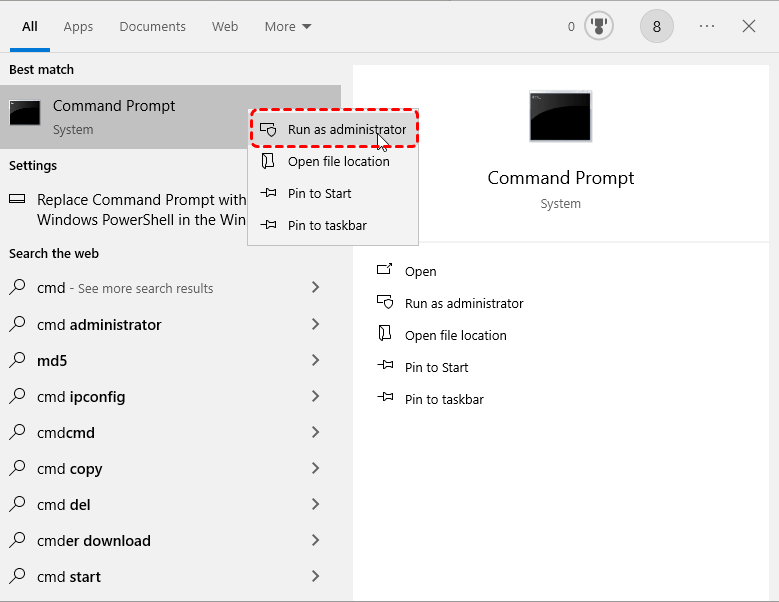
Open Command Prompt as Administrator (search for “cmd” and right-click to run as Administrator).
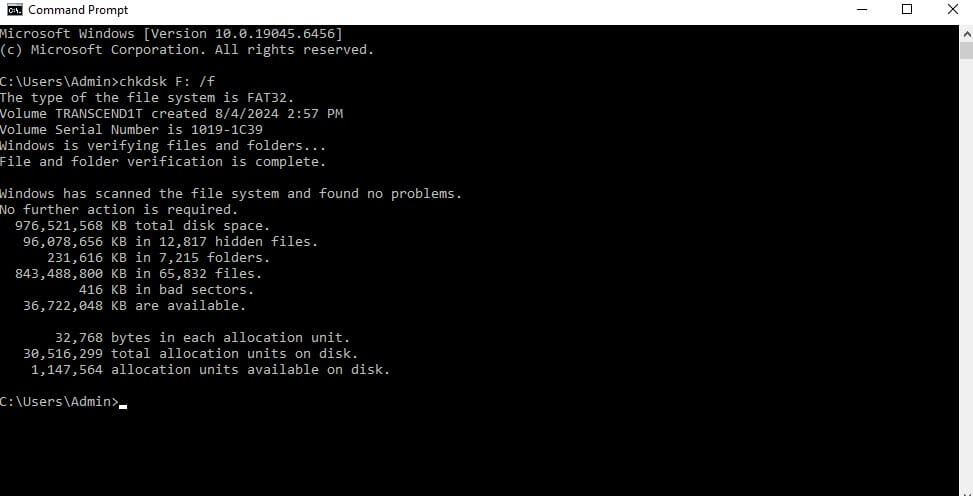
Type the following command and press Enter:
chkdsk X: /f
(Replace “X” with the drive letter of your external hard drive).
2. Let the system scan and fix any issues with the drive.
This method may help recover your files, especially if the drive’s file system is corrupted.
Method 4: Use Data Recovery Software
If the first three methods don’t work, it’s time to try a data recovery tool. One of the easiest and safest ways to recover lost files is by using specialized software like RecoveryFox AI.
Here’s how you can recover your files with RecoveryFox AI in 3 simple steps:
Download and Install RecoveryFox AI: First, download and install the software. The free version allows you to scan your drive and preview the lost files.
Scan Your External Hard Drive: Open the software and select your external drive. Then, click on the Scan button. RecoveryFox AI will start scanning the drive for lost files. This could take a few minutes depending on the size of the drive.
Preview and Recover Files: Once the scan is complete, you’ll be able to preview the files you want to recover. Select the files you need and hit the Recover button. Make sure to save the recovered files to a different drive (not the same one you’re recovering from) to avoid overwriting any data.
Read-only mode: It ensures that no new data is written to your drive while scanning, so your lost files aren’t overwritten.
AI-powered recovery: The software uses advanced AI algorithms to help you recover files more efficiently and accurately.
Preview before recovery: You can see the files before you decide to recover them, saving you time and effort.
Easy to use: No technical expertise required. The interface is user-friendly and simple to navigate.
Method 5: Recover Lost Partition
If your external hard drive has lost a partition, you may be able to recover it using partition recovery software. RecoveryFox AI can help with this as well by scanning the entire drive for lost partitions and letting you recover data from them.
Open RecoveryFox AI and select Partition Recovery mode.
Scan your external drive for lost partitions.
Select the partition to recover and restore the files.
Method 6: Use Professional Data Recovery Services
If none of the above methods work or if your external hard drive has physical damage (like a mechanical failure), it might be time to contact a professional data recovery service.
These services are expensive and not always successful, but they can handle more complex cases of data loss. If you choose to go this route, make sure you do your research and pick a reputable service.
Why Should You Use RecoveryFox AI?
While there are many recovery options out there, RecoveryFox AI stands out for several reasons:
Safe recovery: The software uses read-only mode, so it won’t overwrite any of your data while scanning.
AI-powered deep scan: It’s designed to find files that other tools might miss, giving you the best chance of recovery.
Easy to use: You don’t need any technical knowledge to use RecoveryFox AI. Just follow the simple 3-step process.
Preview before recovery: This feature allows you to see your lost files before you recover them, so you only restore what you need.
Supports multiple devices: Works with external hard drives, USB drives, SD cards, and other storage devices.
Conclusion
Losing files from your external hard drive doesn’t have to be the end of the world. With the right approach and tools, you can easily recover your important data.Try RecoveryFox AI today, and get your files back with minimal effort!
Download the free trialnow and recover your lost files safely with RecoveryFox AI. Don’t wait until it’s too late – the sooner you act, the better your chances of recovery.
FAQ
Is RecoveryFox AI safe to use? Yes! RecoveryFox AI uses a read-only scanning mode, ensuring no new data is written to your drive during the recovery process.
Can I recover files from a formatted external hard drive? Yes! RecoveryFox AI can recover data from formatted drives, including external hard drives, USBs, and SD cards.
Does it work on all file systems? RecoveryFox AI supports common file systems like NTFS, FAT32, and exFAT.
➡ Link Sign up for RecoveryFox AI Lifetime with a 15% discount: https://greencouponcodes.com/lifetime-recoveryfoxai Enter code: GREENCODES15OFF to get 15% off (Only applies when you sign up through the link above).
➡ Link đăng ký RecoveryFox AI Lifetime với ưu đãi giảm giá 15%: https://greencouponcodes.com/lifetime-recoveryfoxai Nhập mã: GREENCODES15OFF để được giảm 15% (Chỉ áp dụng khi bạn đăng ký qua link trên).
Comments Off on How to Create Professional-Quality Designs in Minutes Without the Hassle
Are you struggling with creating stunning, professional designs for your business, social media, or personal projects? If you’re like many people, the thought of mastering complex design software or spending hours creating a single image can feel overwhelming. Not to mention the high costs associated with hiring freelance designers or purchasing expensive software subscriptions.
But what if there was a way to create professional-grade designs in just minutes, without needing advanced skills, pricey software, or a design team? The solution is simpler than you think, and in this post, we’ll show you exactly how to do it.
Step 1: The Pain of Traditional Design Tools
For many people, creating high-quality designs often means spending hours learning software like Photoshop or Illustrator. These tools, while powerful, come with steep learning curves and can take weeks to master. Plus, the high cost of purchasing licenses or subscriptions for these tools can add up quickly.
So, what’s the alternative?
You need a solution that’s fast, simple, and affordable – one that doesn’t require you to be a design expert. The key is finding the right tool that does the heavy lifting for you, leaving you with time to focus on what really matters: growing your business, brand, or creative project.
Step 2: How to Create Stunning Designs in 3 Simple Steps
Creating beautiful, professional-quality designs doesn’t need to be complicated. Here’s a simple guide to help you get started, even if you have no prior design experience.
Step 1: Get Started with an Easy-to-Use Platform
The first step to creating stunning designs is using a platform that’s designed for people who don’t have the time or expertise to learn complex design software. You don’t need to install anything or worry about complicated features – just sign up and start creating.
Once you’re on the platform, you’ll find an easy-to-use interface that walks you through every step of the process. No overwhelming menus, no confusing settings – just everything you need to create high-quality designs, ready to go.
Step 2: Use Simple Commands to Create Your Design
Once you’re set up, it’s time to create your design. The key is using plain English commands to tell the platform exactly what you want. For example, you could type:
“Create a logo with a modern, minimalist style in blue and white.”
“Generate a product image with a white background and soft shadows.”
“Design a social media banner with a tropical beach scene.”
In just 1-2 seconds, the platform generates your image, all done for you. No need to adjust layers, worry about colors, or spend time figuring out complex settings.
Step 3: Edit Your Design with Just a Few Clicks
Once you have your initial design, the next step is to make any tweaks or adjustments. With a few simple commands, you can edit your design, such as:
“Change the background to a sunset at the beach.”
“Add a text box with the title ‘Summer Sale’ in bold font.”
“Make the logo more vibrant with a gradient effect.”
Editing is just as easy as creating. With every change you make, the design updates instantly, giving you the flexibility to fine-tune the details without wasting any time.
Step 3: When You Need the Right Tool – How NanoBanana AI Completes the Picture
At this point, you’ve seen how easy it can be to create and edit stunning designs without needing advanced skills or hours of work. So, how do you achieve the professional quality and speed that make your designs stand out?
That’s where the right tool comes in. NanoBanana AIprovides all the capabilities you need in one simple platform. By integrating multiple top-tier AI models, it ensures that your designs are always high-quality, consistent, and delivered in a matter of seconds.
With NanoBanana AI, you can access a full commercial license, meaning you can sell or use your designs without restrictions. Plus, you get unlimited access, meaning there are no monthly fees or hidden costs. Whether you’re creating logos, banners, product images, or social media posts, NanoBanana AI gives you the flexibility to make anything you need without the traditional complexities of design software.
Conclusion: Start Creating Stunning Designs Today
If you’ve been frustrated by complicated design tools, high costs, or a lack of time, it’s time for a change. You don’t need advanced skills, expensive software, or a design team to create professional-quality designs.
With the right tools and a simple, effective process, you can generate stunning visuals in just minutes – and use them to elevate your business, brand, or personal projects. Whether you’re creating a logo, product image, or social media graphic, the process is easier than you think.
To get started, all you need is the right platform to guide you – one that takes care of the technical stuff and lets you focus on your vision. NanoBanana AI is the ideal solution, offering you professional-quality designs with a few clicks, and unlimited access to all the tools you need.
Ready to start designing like a pro? Click here to get access to NanoBanana AI and unlock your creative potential. Plus, don’t forget to use my $4 discount code: NB4OFF to save on your purchase today!
Comments Off on How to Create Viral Social Media Content Step-by-Step
Social media feels more competitive than ever. Every day, millions of posts flood Facebook, Instagram, TikTok, and LinkedIn — yet only a few manage to go viral, spark conversations, and drive real engagement.
If you’ve ever poured hours into designing a graphic only to watch it flop, you’re not alone.
The truth is:
Most creators and businesses struggle with time (posting consistently).
Many lack design skills to make content look professional.
And most don’t have a system to streamline the process.
This guide will walk you through exactly how to create visuals that stand out and get shared — without needing advanced design skills. I’ll also show you a powerful tool (with a $40 OFF discount) that makes the whole process much easier.
Before we dive into the steps, let’s look at why visual content matters more than ever:
Visuals outperform text-only posts: People process visuals 60,000x faster than text. Posts with images or videos get far more engagement.
Brand recognition grows with visuals: Colors, fonts, and logos stick in people’s memory longer than words alone.
Visual storytelling drives conversions: From memes to motivational quotes, visuals trigger emotion — and emotion drives action.
If you’re not prioritizing visuals, you’re leaving money and engagement on the table.
Step 1: Identify the Pain Point
The biggest obstacles most creators face are:
Time pressure: Consistently posting daily or weekly is exhausting.
Skill gap: Tools like Photoshop are complex and time-consuming.
Overwhelm: Managing multiple platforms at once feels like a full-time job.
This is why so many people give up on content consistency — but consistency is exactly what drives growth.
Step 2: The Step-by-Step Guide to Creating Viral Content
Tip #1: Start with Proven Templates
Stop staring at a blank canvas. Proven templates save time and already follow best practices for engagement.
Meme templates → Add humor and relatability.
Motivational quotes → Highly shareable across all industries.
Cinemagraphs → Eye-catching animations that pop in feeds.
Templates aren’t “cheating” — they’re the shortcut to getting results faster.
Tip #2: Keep Your Branding Consistent
Brand recognition is built through repetition and consistency.
Use brand colors across all posts.
Stick with the same fonts for text overlays.
Always include your logo so even shared content leads back to you.
A consistent look makes your content unmistakably yours.
Tip #3: Automate Your Posting
If you’re still manually posting every update, burnout is inevitable. The smart way is to batch your content and schedule it ahead of time.
Plan content weekly or monthly.
Schedule across platforms.
Free yourself to focus on strategy, not busywork.
👉 At this point, you’ll need a tool that combines templates, branding, and scheduling into one streamlined system.
Step 3: Meet the Tool That Simplifies It All
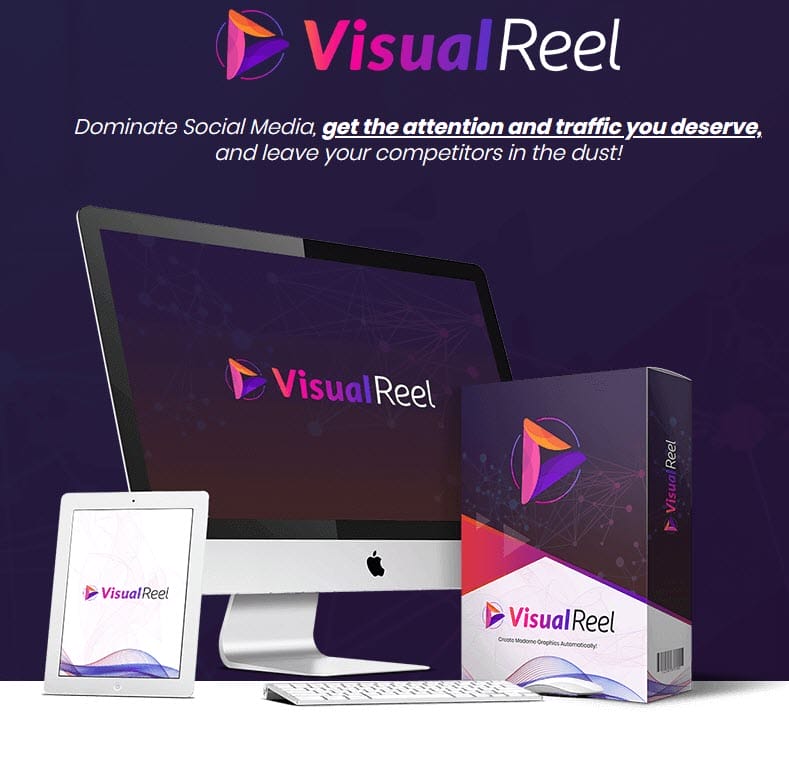
That’s where VisualReel comes in.
VisualReel is a cloud-based content creation and automation platform that takes the heavy lifting off your shoulders. Here’s what it does:
Ready-made templates: Create memes, quote-pics, cinemagraphs, and more in minutes.
Easy customization: Add your logo, tweak colors, and align visuals with your brand identity.
Built-in automation: Schedule and auto-post to multiple social media accounts — no need for third-party schedulers.
Massive content library: Access curated images, quotes, and clips to use instantly.
Performance analytics: See which visuals perform best and double down on what works.
💡 Special bonus for my readers: You can try VisualReel with an exclusive $40 OFF discount using my link. It’s the easiest way to start creating professional-grade content without breaking the bank.
Real-World Use Cases
Who benefits most from VisualReel? Pretty much anyone who wants to grow online:
Small business owners → Save money on agencies and design everything in-house.
Freelancers → Offer content creation as a paid service for clients.
Agencies → Manage multiple clients’ content in one streamlined platform.
Content creators → Build a consistent online presence and grow your personal brand.
Conclusion
Going viral on social media isn’t just luck — it’s about consistency, creativity, and smart tools. By following these steps:
Start with templates that work.
Keep your branding consistent.
Automate your posting.
…you’ll set yourself up for long-term growth and engagement.
And with VisualReel, you get all of this in one place — without needing design skills or juggling multiple apps.
Q1: Do I need design experience to use VisualReel? No. VisualReel is beginner-friendly, with drag-and-drop templates that anyone can use.
Q2: Which social platforms can I post to with VisualReel? You can create and schedule content for Facebook, Instagram, Twitter/X, LinkedIn, and more.
Q3: Can I use VisualReel for client work? Yes. Many freelancers and agencies use VisualReel to manage content creation and posting for clients.
Q4: How does the $40 OFF discount work? Through my special link, you’ll get $40 off the regular price of VisualReel. It’s a limited-time offer designed to help new users get started.
Q5: Is there a learning curve? VisualReel is intuitive, but it also comes with tutorials and training to help you get results faster.
With years of experience exploring the best ways to save money and enhance daily life, I created this blog to share the tips, tricks, and tools that have made a real difference for me—and can help you too.
I focus on exploring the latest AI tools, marketing platforms, and practical strategies to make life easier, smarter, and more efficient. From writing aids like Rytr to marketing platforms like GoHighLevel, I cover the best tools that can help businesses grow and individuals thrive.
Feel free to browse through the blog, sign up for weekly tips, and reach out if you have any questions. Together, let’s make positive changes toward a more efficient, cost-effective, and fulfilling life!